


Laptop and Computer Repairs or Replacement?

The laptop that freezes before a video call, the desktop that will not start, or the screen that suddenly shows lines can bring an ordinary day to a halt. Laptop and computer repairs are often a more sensible answer than replacing a device straight away, particularly when the fault is limited, your files are still valuable, or a new machine would mean an unnecessary expense.
The right choice depends on the device’s age, the nature of the fault and what you need it to do. A clear diagnosis turns a worrying problem into a practical decision. Some issues are quick to put right. Others are a sign that it is time to plan an upgrade. Knowing the difference can save both money and frustration.
When laptop and computer repairs make good sense
A device does not need to be brand new to be worth repairing. Many common faults affect one component rather than the whole machine. Replacing a worn charging socket, damaged keyboard, faulty screen, battery, cooling fan or storage drive can give an otherwise dependable laptop several more useful years.
Slow performance is another area where a repair or upgrade can make a noticeable difference. A computer that takes ten minutes to start may have an ageing hard drive, limited memory, unwanted software, overheating problems or a combination of smaller issues. Moving from a traditional hard drive to a solid-state drive, for example, can make a suitable older machine feel far more responsive for everyday work, web browsing and schoolwork.
For desktop computers, individual parts can usually be tested and replaced without changing the entire system. A failed power supply, graphics card, drive or memory module may sound serious, but it is often a targeted repair. This is especially worthwhile when the computer has a good processor, enough memory and a case that can accommodate sensible upgrades.
Repair also makes sense where familiar software, saved passwords, email settings and personal files are already in place. Replacing a computer is not simply the cost of the hardware. There is time involved in setting it up, transferring data and getting everything working as it was before.
Start with the fault, not the worst-case scenario
A black screen does not automatically mean a dead laptop. It could be a display issue, a loose connection, a charging fault, a failed drive, a memory problem or software that is preventing the system from loading. The same symptom can have very different causes, which is why a proper assessment matters before anyone commits to a repair or replacement.
If your device is still working, make a note of what happens and when. Does it only shut down during gaming or video calls? Is the charging cable loose? Has the fan become unusually loud? Did the problem start after a drop, a spill, a software update or a power cut? Small details can help identify the fault more quickly.
Do not keep forcing a machine to run if it smells hot, makes clicking noises, has a swollen battery or has had liquid spilled on it. Switch it off, disconnect power where safe to do so and seek advice. Continuing to use it can turn a repairable issue into wider damage.
Protect your data before the problem grows
Your photos, documents and accounts are often more important than the computer itself. If you can still access the device, back up essential files to a trusted external drive or secure cloud storage as soon as possible. Check that the backup has completed and that you can see the files, rather than assuming they have copied successfully.
If the machine will not start, avoid repeatedly restarting it in the hope that it will recover. A failing drive can deteriorate with further use. Data recovery is sometimes possible, but it depends on the fault and can become more difficult where a drive has been heavily damaged.
It is also wise to keep account passwords and recovery details accessible separately from the device. If a laptop has to be reset, repaired or replaced, being able to sign back into your email and other key services will make the process much less stressful.
Repair or replace? Consider the full picture
Age matters, but it should not be the only factor. A five-year-old laptop with a failed battery may be an excellent candidate for repair. A similar-aged machine with a cracked screen, failing motherboard, worn battery and very limited specifications may not represent the best value, particularly if it cannot run the software you need.
Think about your everyday use. A student writing assignments, a family managing photos and a home user checking emails have different needs from someone editing video, running business software or playing demanding games. A repair may restore a device perfectly for lighter use, while a power user may benefit more from upgrading to equipment that will remain capable for longer.
The cost of repair should be compared with the cost of a suitable replacement, not simply the cheapest computer available. A low-cost replacement with limited storage, poor battery life or insufficient memory may create the same frustrations again. A good technician should explain the options plainly, including when a repair is worthwhile and when it would be better to put the money towards another device.
For a desktop, a bespoke build can sometimes be the better route. It allows the computer to be matched to the work you actually do, whether that is office tasks, home learning, photo editing or gaming. It can also make future upgrades easier than buying a sealed, one-size-fits-all system.
Common problems that should not be ignored
Some faults are inconvenient but stable. Others can lead to data loss, safety concerns or more expensive damage if left alone. Keep an eye on warning signs such as repeated blue-screen errors, random restarts, files that will not open, a battery that drains unusually quickly, or a charger that only works at a certain angle.
Overheating deserves prompt attention. Dust inside the cooling system, dried thermal material or a failing fan can cause a laptop or computer to slow itself down, crash or shut off to prevent damage. Placing a laptop on a duvet, cushion or other soft surface can block ventilation, so use it on a hard, flat surface while arranging a check.
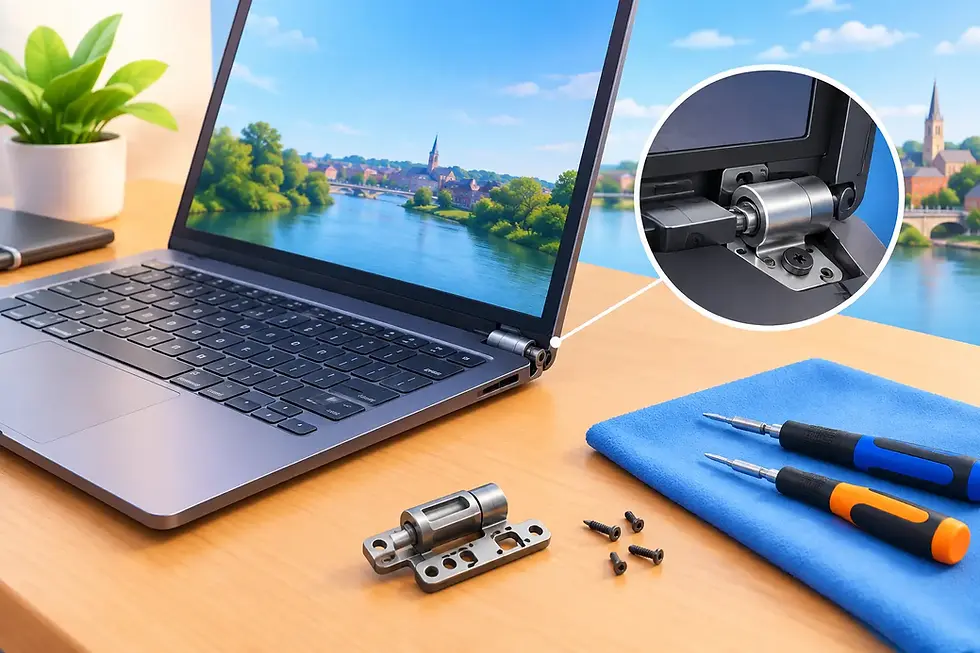
Physical damage also benefits from early attention. A small screen crack can spread, a loose hinge can damage cables running through the lid, and a compromised charging port can become harder to repair if it is repeatedly pushed or twisted. Temporary fixes such as tape around a charger or a badly fitting plug are not a safe long-term answer.
What a trustworthy repair service should provide
Handing over a device means handing over access to a large part of your life. You should know who is dealing with it, what they have found and what the likely cost will be before work goes ahead. Plain-English explanations are valuable, especially when the problem has interrupted work, study or family life.
Ask whether the fault will be diagnosed before parts are fitted, whether your data can be preserved, and what guarantee applies to the repair. It is reasonable to ask about the condition of replacement parts and whether there are any limitations. For example, a damaged screen can be replaced, but a very old laptop may still have modest performance compared with a newer model.
A local independent repair service can be particularly helpful when you want personal advice rather than a generic support process. At Gemini Computing, repairs are handled with careful attention to the individual device and backed by a 30-day repair guarantee. That direct approach makes it easier to discuss what matters most to you, whether that is recovering family photos, getting back to work quickly or deciding if an upgrade is the better investment.
Keep a repaired device working well
Once a fault has been fixed, a few habits can help protect the investment. Keep software and security updates current, use a quality protective case or sleeve when travelling, and avoid eating or drinking directly over a keyboard. Leave room around vents and do not coil charging cables tightly around the adaptor.
Regular backups are still the best protection against unexpected failure, theft or accidental damage. For computers used by several family members, separate user accounts can also help keep files organised and reduce the risk of unwanted changes.
Most importantly, do not wait for a minor fault to become a complete failure. A prompt assessment can give you a straightforward repair, protect the files you cannot replace and help you make a confident choice about what comes next.


Comments